How to add a calendar
You can add as many calendars as you like, to stay organized or to give each person their own. Common reasons to use more than one:
- A separate calendar for school and home
- One calendar per child in a family or classroom
1. Open the Add Calendar Menu
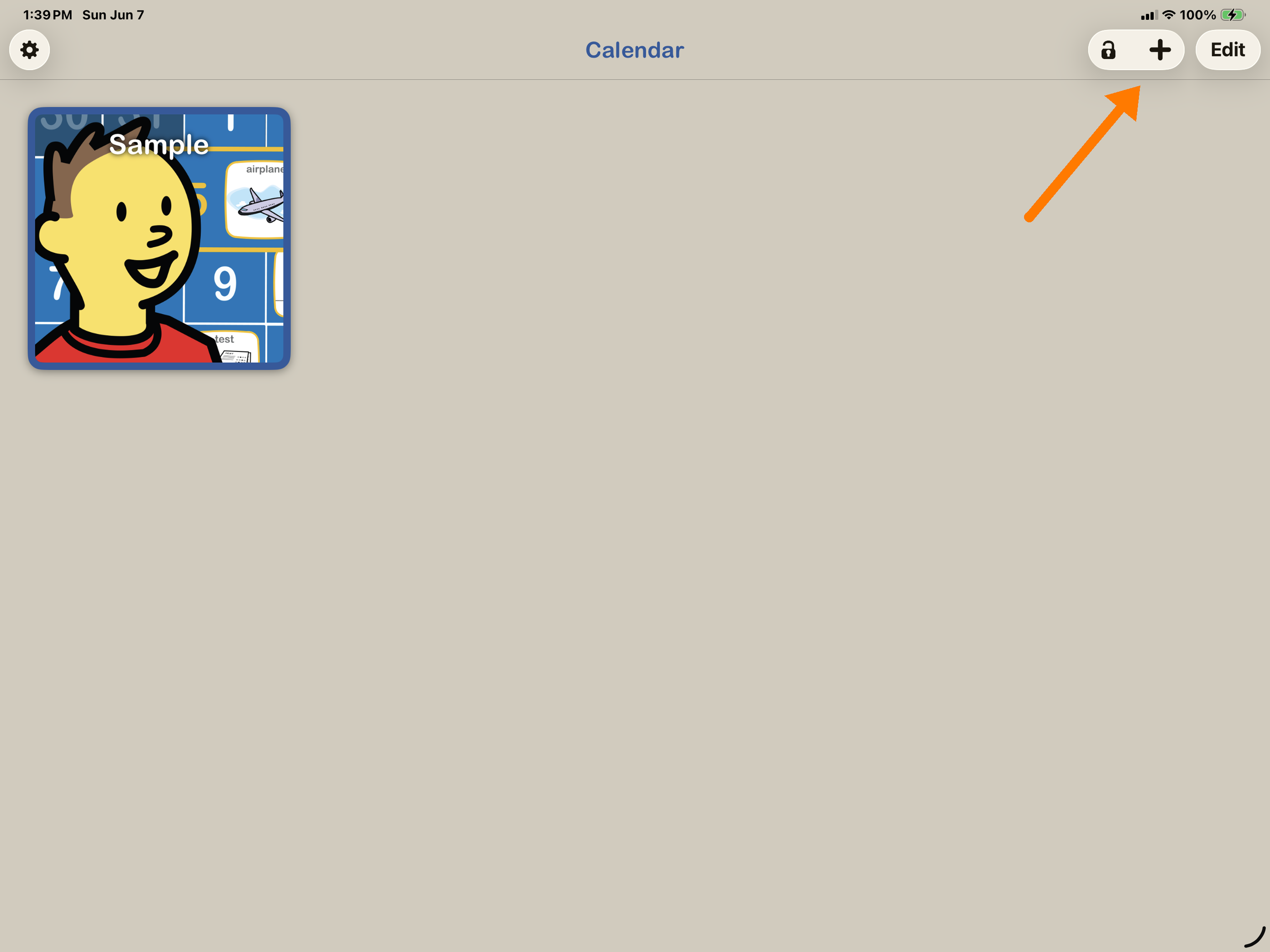
Tap on the Add Calendar icon (+) near the top right corner of the apps main screen.
2. Set calendar information
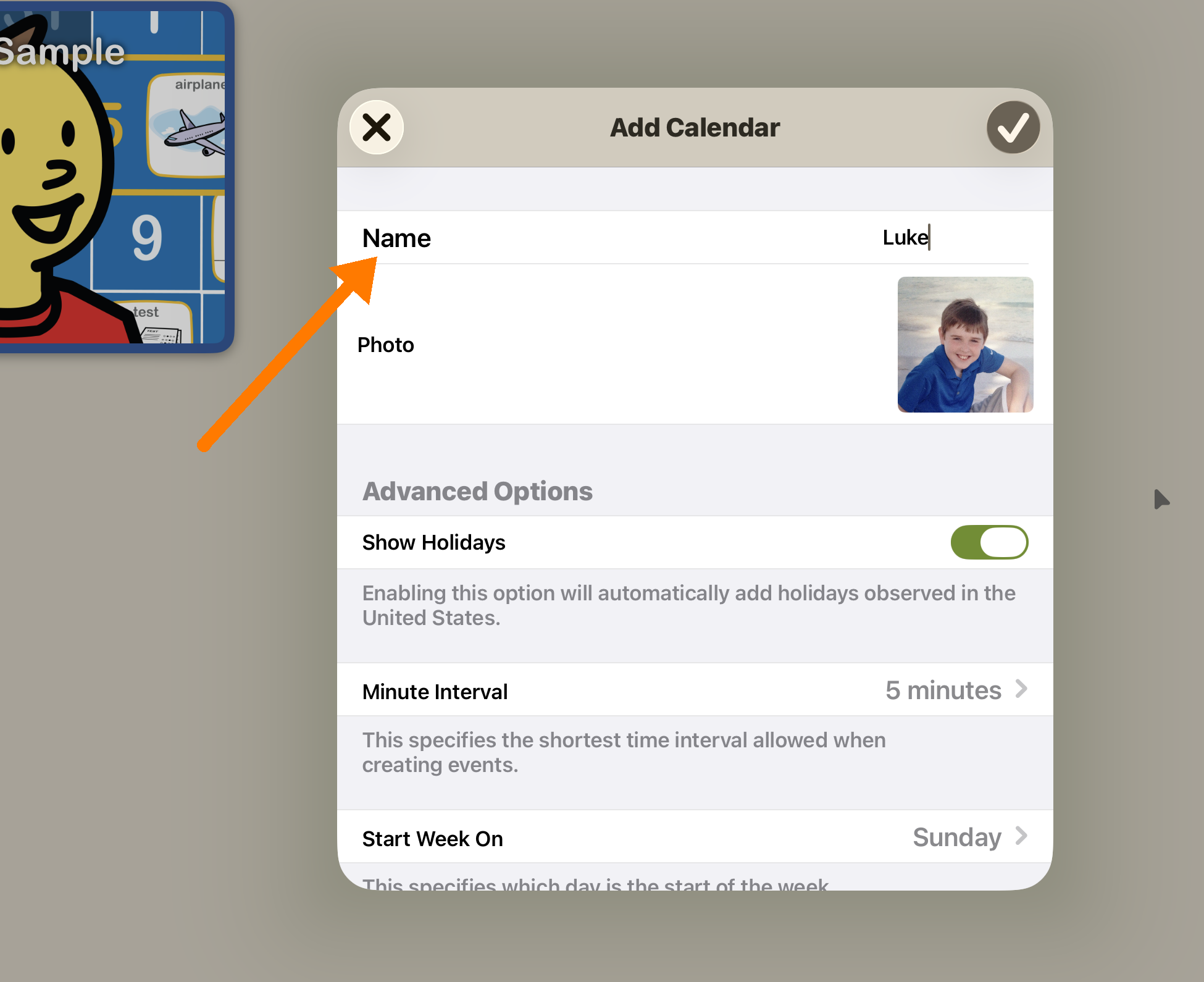
The Add Calendar screen allows you to set the following attributes of the new calendar:
Name to uniquely identify the calendar (required).
A photo to personalize the calendar (optional). You can use your camera to take a photo or choose one from your photo library.
Enable/disable U.S. holidays (default is enabled).
Minimum interval for time in events (default is 5 minutes). Increase or decrease this if you need more or less precision.
Start day of each week (default is Sunday).
3. Done
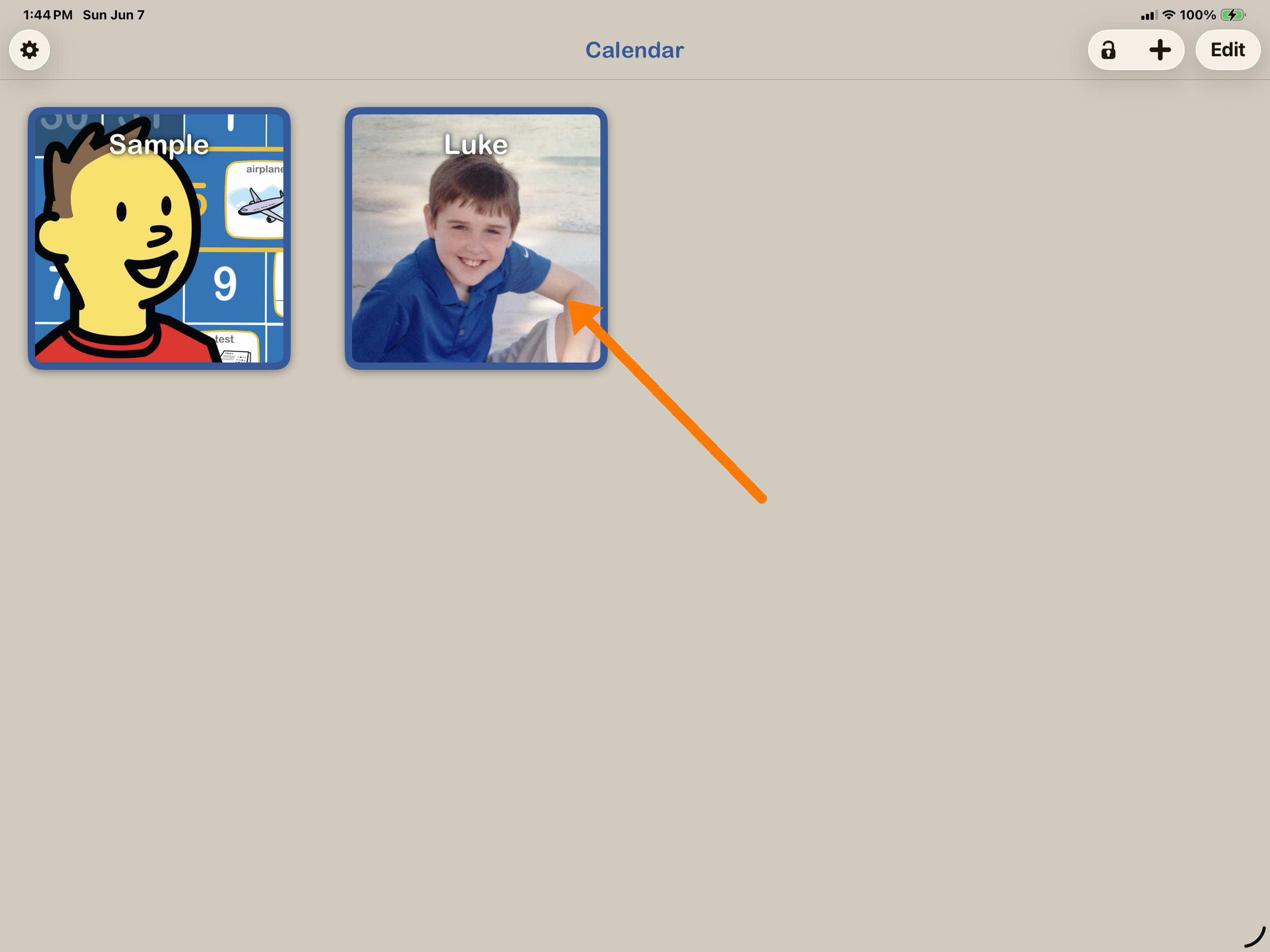
Tap done and the newly created calendar will appear on the apps main screen.