
How to create repeat events

1. Turn on Repeat

Add or open an event, then turn the Repeat Event switch on.
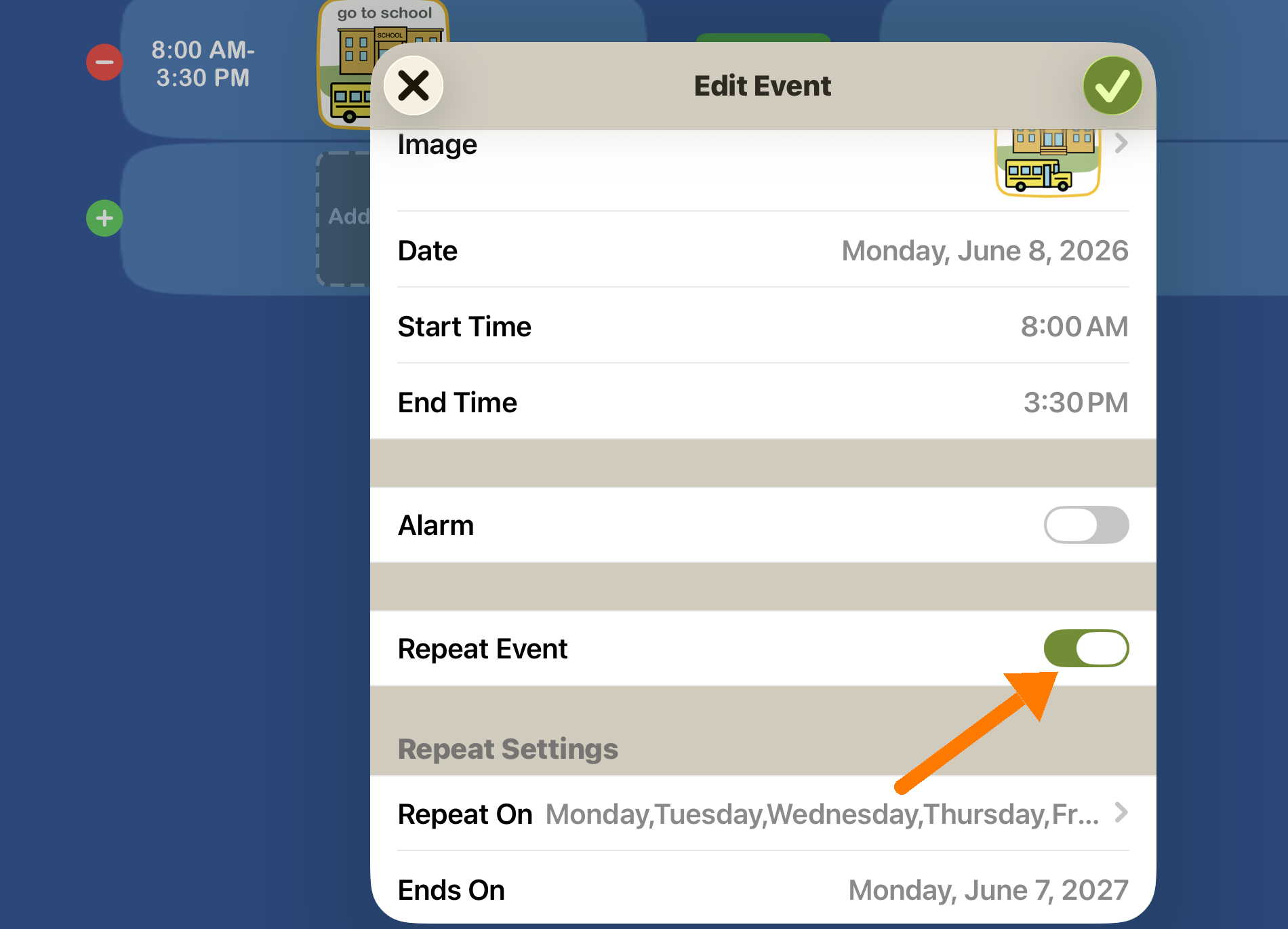
Screenshot of a scheduling app showing an 'Edit Event' window for a school-related event. The window displays event details such as date, start and end times, with options to toggle alarm and repeat event. The background shows part of the scheduling interface with a school icon, bus, date, and time information.


2. Choose the days and end date.

Pick which days it repeats (Repeat On) and set Ends On for when it stops (it defaults to one year out). Then tap the green checkmark to save.
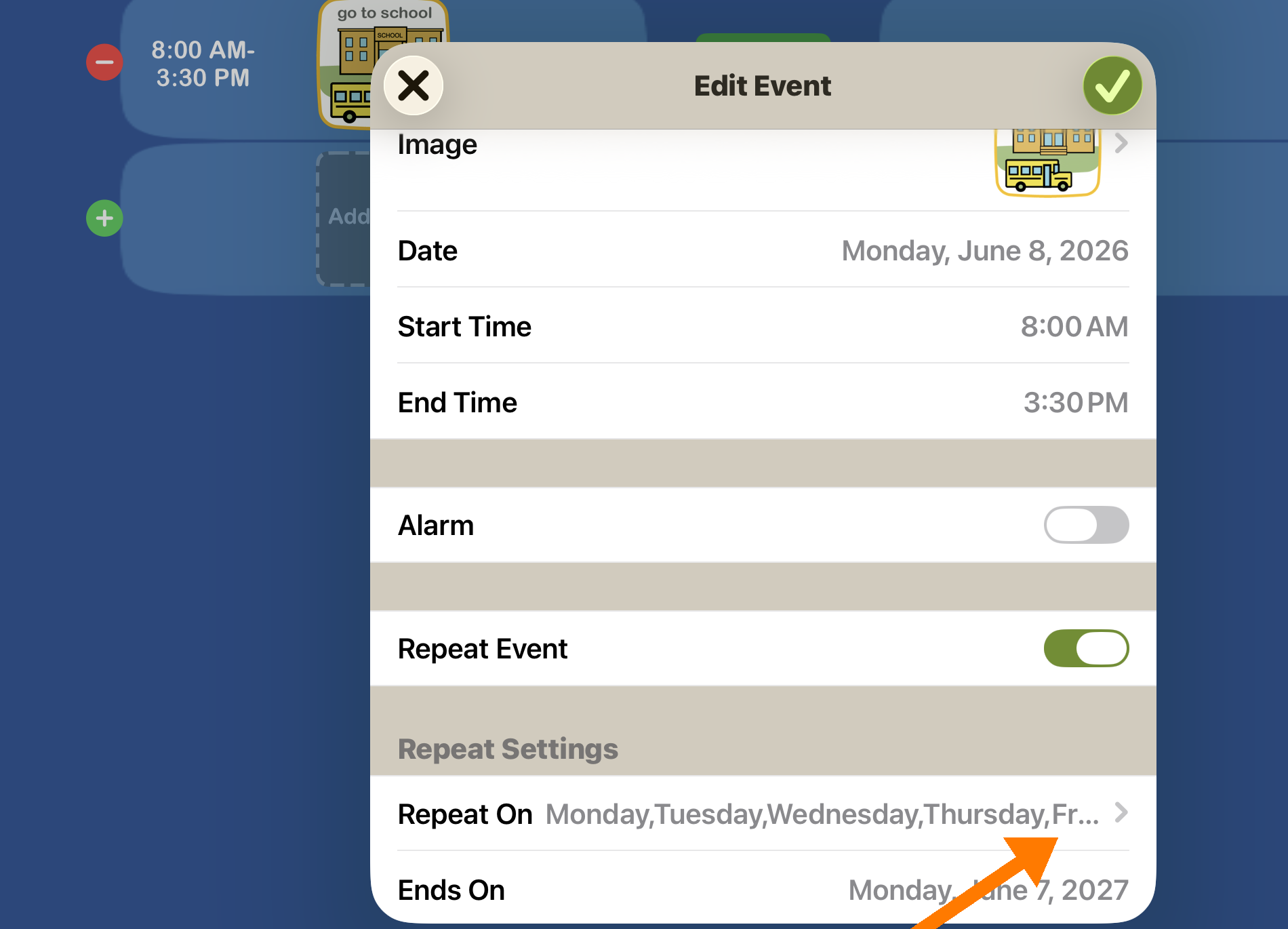
Screenshot of a mobile app event editing screen showing event details such as date, start and end times, and repeat settings, with icons for saving or canceling the event.