
How to add events

1. Open Calendar in Edit Mode

Open the calendar you wish to edit by selecting it from the apps main screen. Tap on 'Edit' in the top right to switch into editing mode.

Related guides: Create a calendar
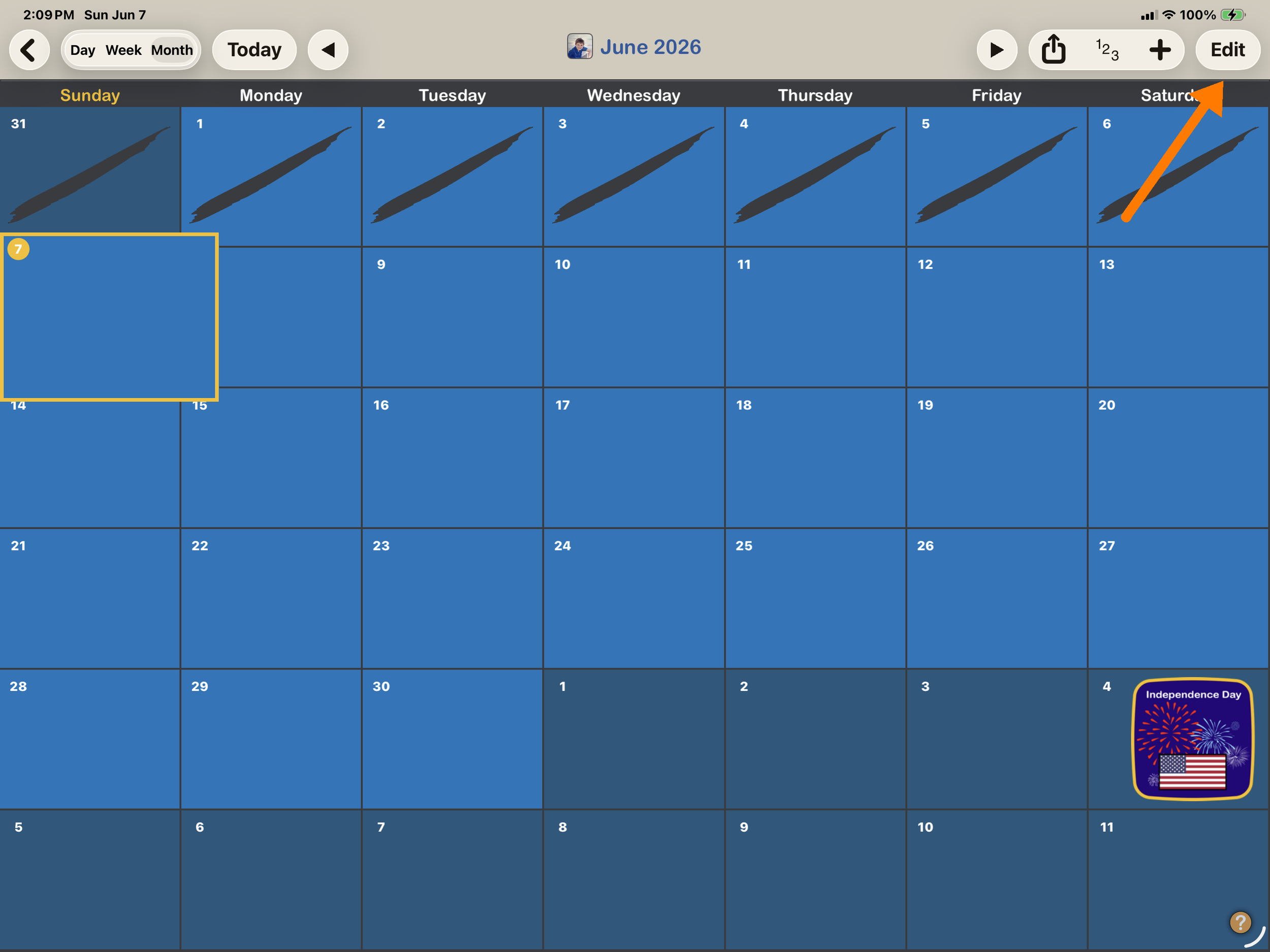
Screenshot of a digital calendar showing the month of June 2026, with a highlighted date on June 7th, which is a Saturday. The top menu includes options for changing the view, and a badge in the bottom right corner displays a fireworks graphic and an American flag, indicating Independence Day.

2. Highlight day for the event

Use the left and right arrows on the top to move the calendar view forward or backward in time until the desired day is in view. Tap on the day where you want to add the event to highlight it. A yellow box will highlight your selection.
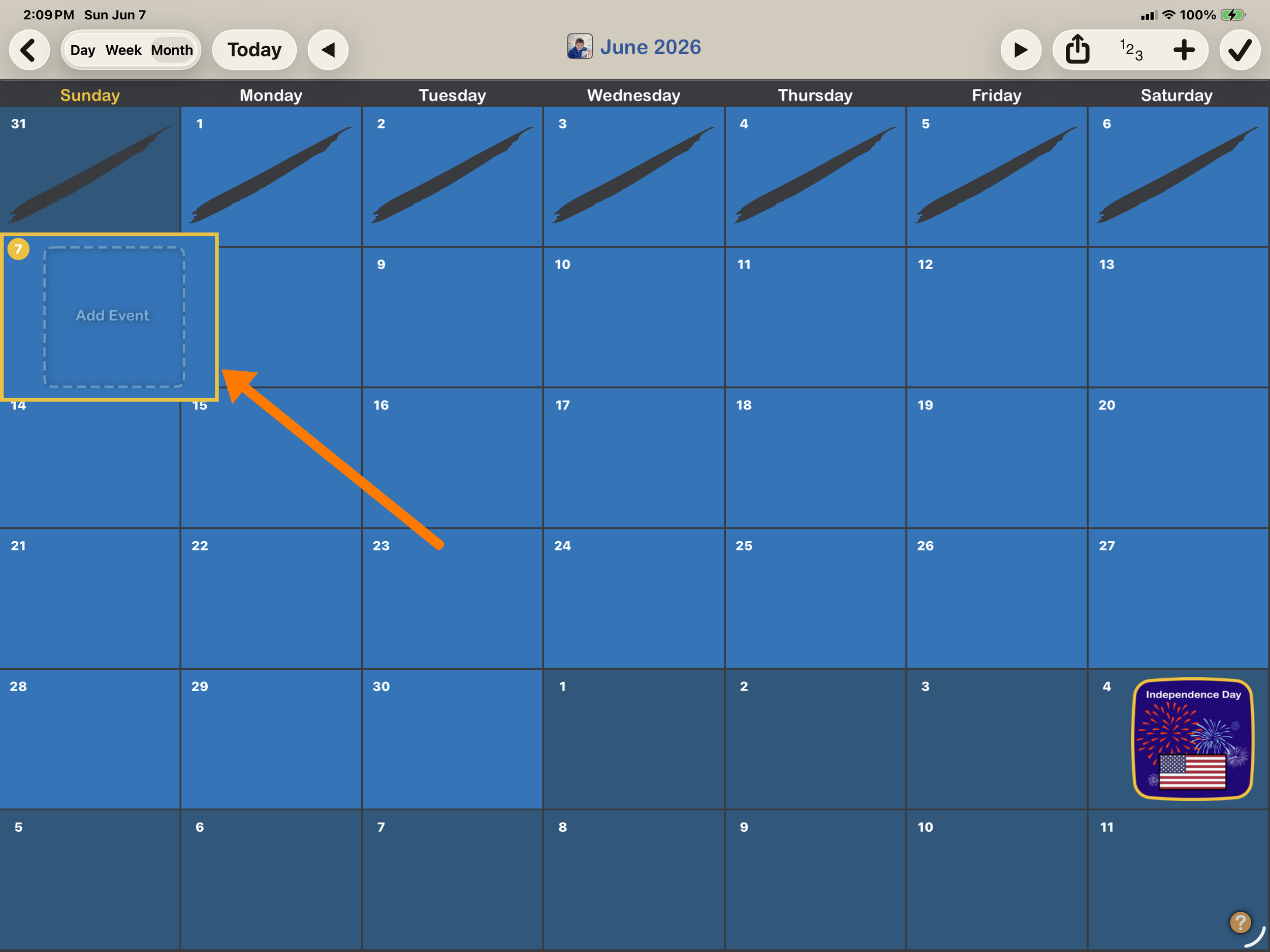
A digital calendar displaying the month of June 2026, with some days marked for events and a sticker in the bottom right corner celebrating Independence Day with imagery of fireworks and an American flag.

3. Add Event

Tap on "Add Event" (or plus sign) to bring up the Add Event dialog. Select an image and adjust the date, time, duration, alarm and repeat fields as desired. Tap "Done" when finished.

Related guides: Create Repeat Events
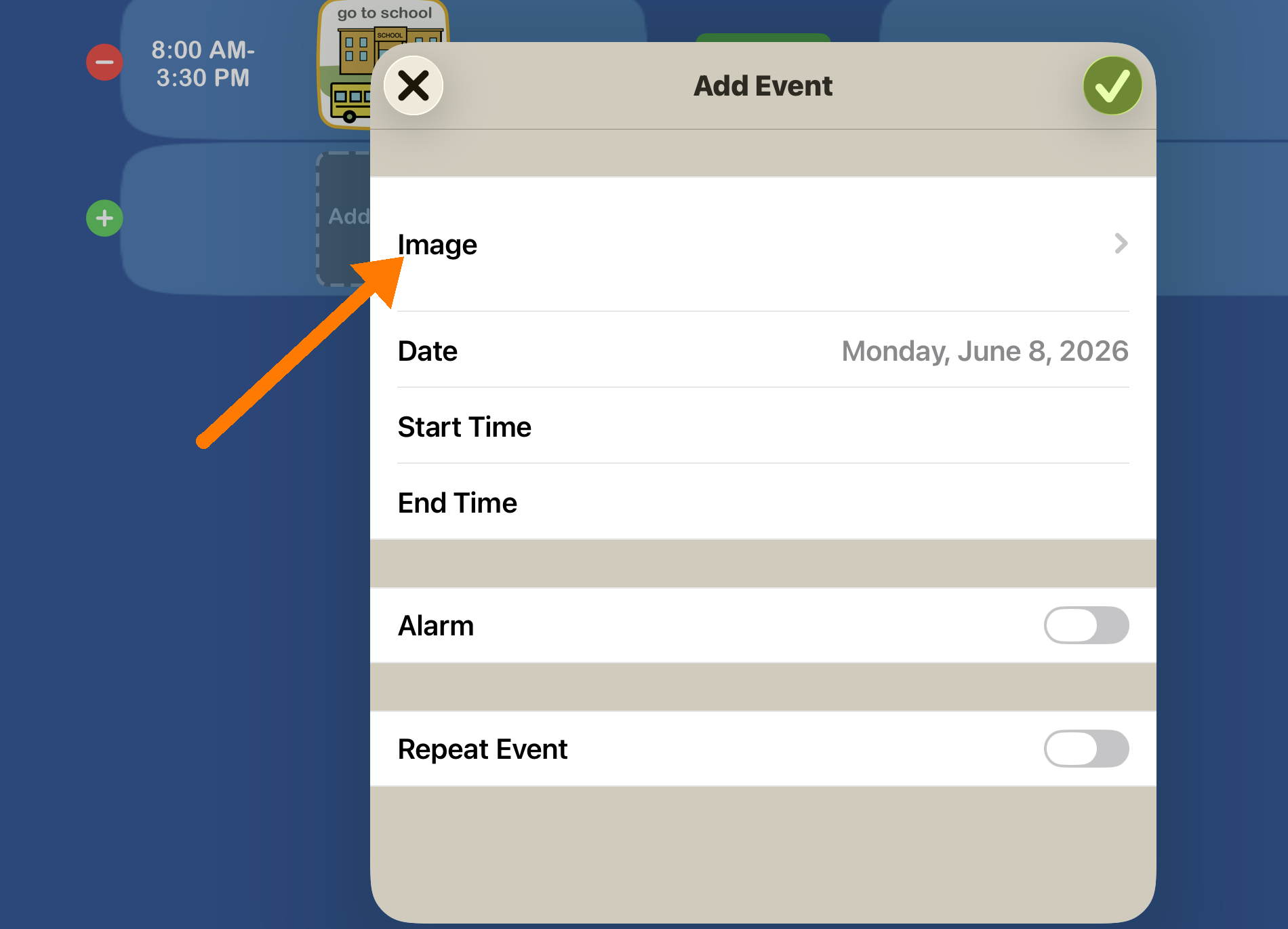
Mobile app screen showing an 'Add Event' form with fields for image, date, start time, end time, alarm, and repeat event. The background features a schedule or calendar with a highlighted time slot from 8:00 AM to 3:30 PM and icons representing school and bus.